RPA Operations
Part of RPA bot operations
Detecting a bot broken by an interface change
Find a failing UI step, rule out access and runtime issues, verify affected records and release a controlled selector repair.
Find the first step that no longer behaves as expected. Check whether the application and bot session are available, and compare the current screen with a known good run.
Treat an interface change as a possible cause until the evidence supports it. Check affected business records before retrying work.
Spot the failure and its effect
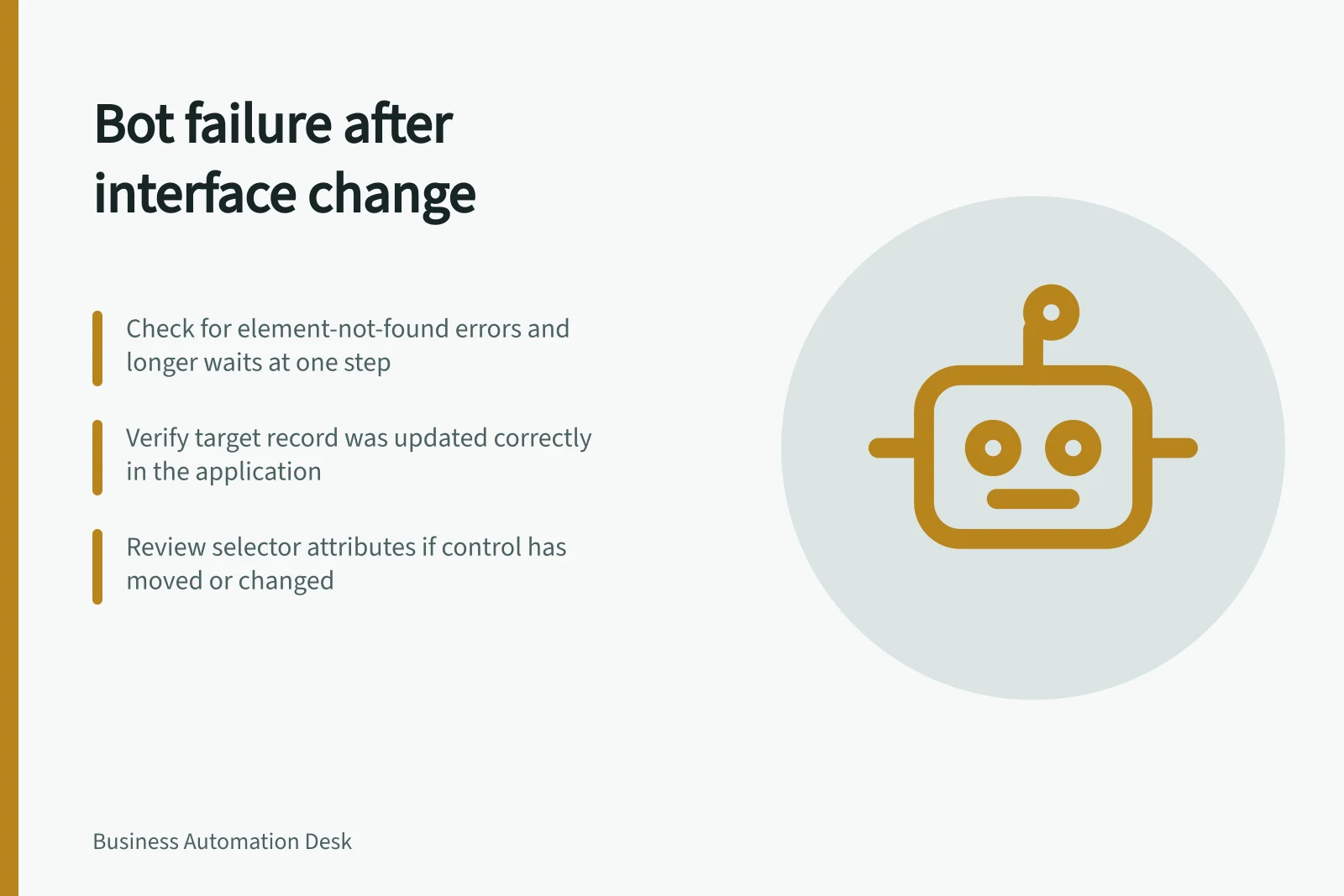
Watch for repeated element-not-found errors, longer waits at one step, application exceptions and a growing backlog. Where a silent error would matter, check whether the expected target record was created or changed correctly.
A completed job is not enough evidence: check the affected item in the target application and confirm the expected business outcome.
Use available logs and run detail to find the first failing action, then inspect the affected item in the target application.
Detecting and Resolving a Bot Breakage Due to Interface Change
- Identify the first failing stepLook for element-not-found errors, extended waits, or application exceptions in logs.
- Verify business outcomeCheck whether the expected record was created or updated in the target application.
- Rule out non-interface causesConfirm app availability, login permissions, screen state, and runtime environment (e.g., DPI, OS version).
- Repair the selectorInspect element attributes; use Power Automate’s repair suggestion or manually update the selector.
- Test safely before resumingValidate with safe records and unattended session; document changes and approvals.
- Monitor post-releaseWatch for recurrence of original error or unexpected business results.
Key Indicators of Bot Failure from Interface Changes
- Common Error Type
- Element-not-found
- Typical Delay Trigger
- Extended wait at UI step
- Critical Check
- Verify business outcome, not just job completion
- Environment Factor
- Screen resolution, DPI, OS version
Rule out other causes
- Application and runtime:Could the bot reach the application from its machine or session?
- Access:Could the bot sign in with the permissions its task needs?
- Screen:Did the expected element appear in the same state, window mode and role-specific view?
- Result:Did any part of the action change the target record?
Microsoft's guidance on unattended desktop flow failures identifies environment differences as a possible cause, including screen resolution, DPI awareness, OS version, multi-user session requirements and installation conflicts. A failure soon after an update does not, by itself, identify the cause.
Repair and resume
If the intended control has moved or changed, inspect its current attributes and choose a selector that identifies it reliably. Power Automate for desktop can propose a repaired selector for desktop or web elements.
The maker must review the suggestion; some selectors need manual repair, and selectors containing variables cannot use that repair feature.
Check the repaired step and downstream business result with safe records, including similar-looking controls and the unattended session used in production. Record the application change, bot version, affected item references and approval to resume.
Hold uncertain items until their target-system state is known. Retry demonstrably incomplete items only; a partly posted item needs a process-owner decision.
After release, watch the next runs for both the original error and unexpected business results.