Business Cases
Part of Finance process automation
Automating an invoice approval process with controls
Automated invoice approval should route clear cases efficiently and expose exceptions before posting.
Automate invoice approval by turning the organisation’s policy into routing rules, matching checks and exception paths. Clear invoices can follow the configured workflow; discrepancies should remain visible until resolved.
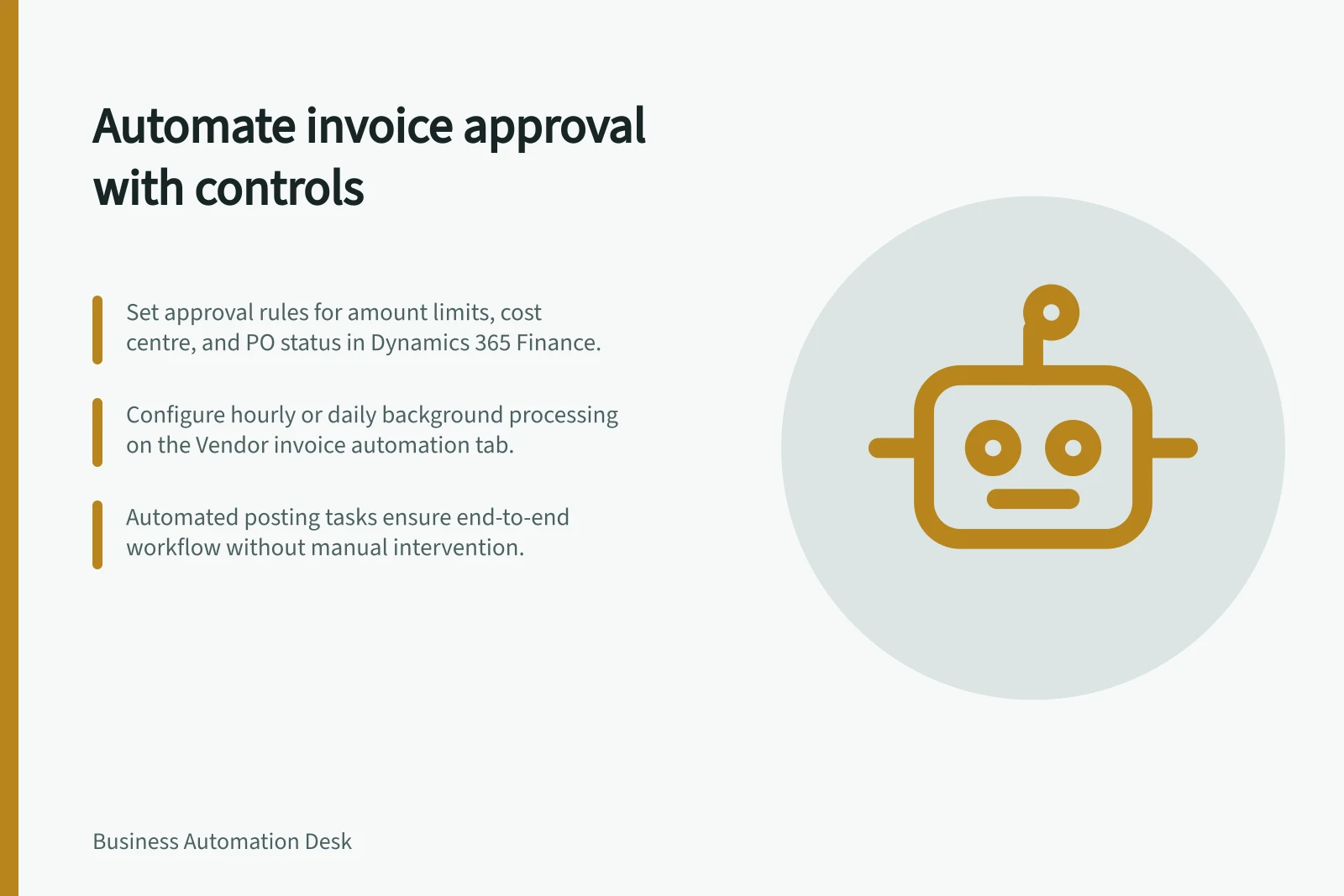
Set approval rules for amount limits, cost centre, purchase-order status and delegation. Specify who may approve each case and who may authorise an override; do not let an approval erase an unresolved receipt discrepancy.
In Microsoft Dynamics 365 Finance, configure automatic workflow submission on the Vendor invoice automation tab of Accounts payable parameters (Accounts payable > Setup > Accounts payable parameters). Set the background process to run hourly or daily.
Automatic submission starts with imported invoices. It supports purchase-order invoices and invoices with a non-PO procurement category and non-stocked lines; manually entered invoices must be submitted manually. For a process that needs to run from start to finish without manual intervention, include an automated posting task in the workflow configuration.
Choose the matching check that fits the purchase process. Invoice-total matching compares invoice and purchase-order totals; two-way matching compares invoice and purchase-order prices; three-way matching also compares invoice quantities with selected product receipts. Charges matching compares invoice and purchase-order charges.
Set a tolerance percentage or amount for matching discrepancies. Dynamics 365 Finance matches prices by unit price by default, with an option to match by price total; discrepancies beyond tolerance are flagged, and the invoice can be saved until the discrepancy is resolved.
For example, a purchase order and product receipt each show 1,000 batteries at 1.00 each. With a 5 per cent net unit price tolerance, an invoice price of 1.05 is acceptable, but 1.10 is flagged as a discrepancy. Use this case to verify that the tolerance flags the variance and that approval does not clear it without resolution.
Test a normal purchase-order case with matching invoice prices and receipt quantities. Confirm that the invoice passes the configured matching checks and reaches the workflow step set by policy.
Test an invoice above the organisation’s amount limit and confirm that it follows the delegated approval route. Test an eligible imported non-PO invoice with a non-PO procurement category and non-stocked lines to confirm automatic submission; check separately that a manually entered invoice requires manual submission.
Test a mismatch with the battery example: confirm that the 1.10 invoice price is flagged against the 5 per cent tolerance and remains unresolved until corrected or formally overridden. For three-way matching, also test an invoice line with multiple posted product receipts; the background matching process may need to run multiple times to match the full invoice quantity.
For automatic receipt matching, define a three-way matching policy and enable the Vendor invoice automation feature in Feature management. Set the maximum number of matching attempts; the process runs hourly or daily, either with workflow submission or as a stand-alone process.
Require the audit trail to show who acted, what they did, when they did it and what changed, including approval steps. Preserve the decision, document version and any override rationale; in Dynamics 365 Finance, the background task’s specified user ID appears as Submitted by and can recall the invoice from the workflow.
Assign an owner to stalled cases and review exception and override patterns periodically. Keep unusual transactions on a manual route so an unresolved discrepancy remains visible to finance.
Matching Methods in Dynamics 365 Finance
- Invoice-Total Matching
- Compares total invoice amount to purchase order total
- Two-Way Matching
- Compares invoice and purchase-order prices (unit or total)
- Three-Way Matching
- Compares invoice, purchase order, and product receipts (price, quantity, and charges)
- Charges Matching
- Compares invoice charges against purchase-order charges
Key Configuration Settings for Automated Invoice Approval
- Background Process Frequency
- Hourly or daily
- Maximum Matching Attempts
- Configurable (set in Feature management)
- Tolerance Percentage (Default)
- 5% net unit price tolerance
- Manual Submission Required For
- Manually entered invoices